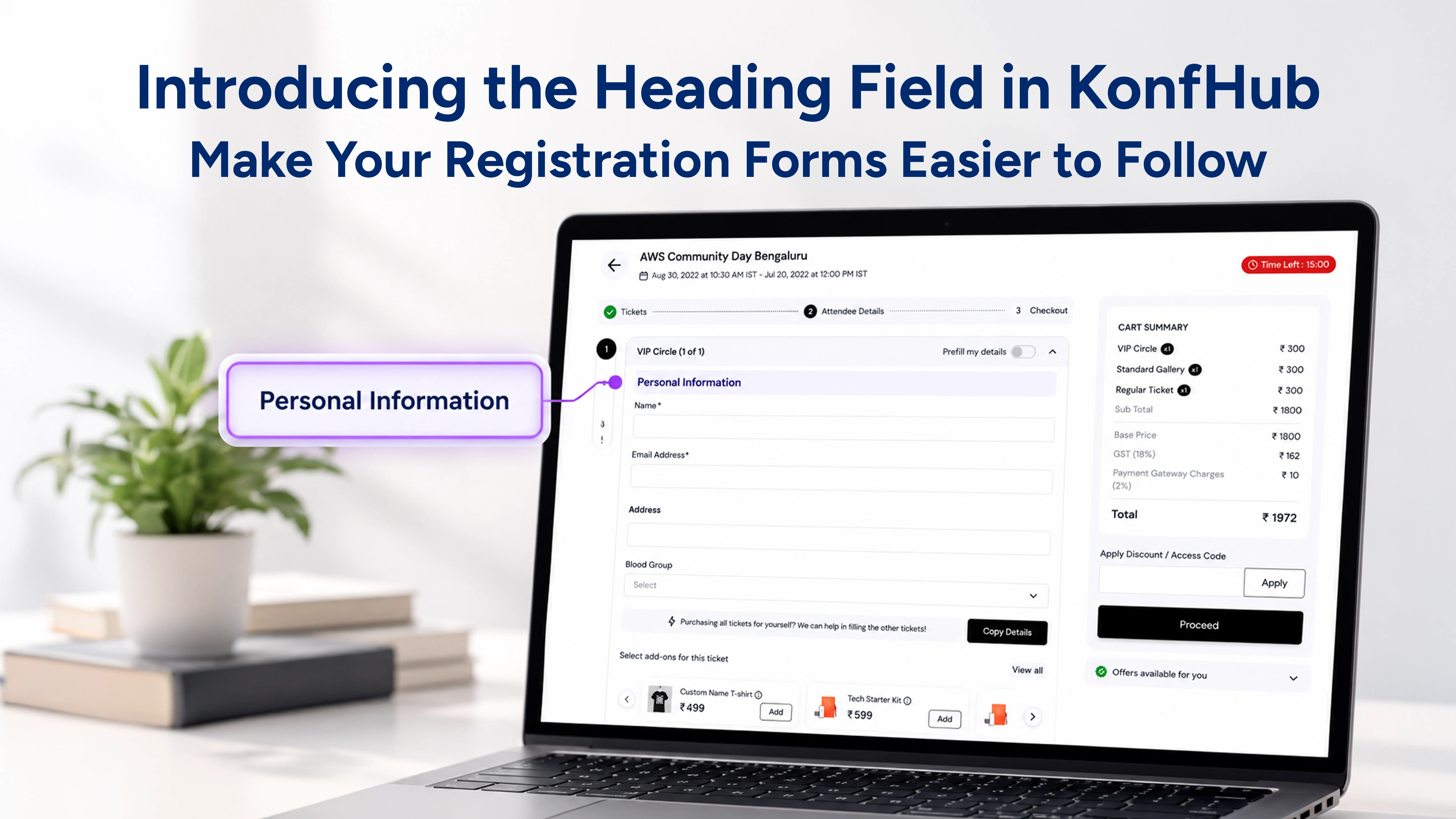
A registration form should do more than collect attendee details. It should also help people understand what information they need to provide and why it is being asked.
For event organizers, this can be tricky when a form contains several questions. Attendees might have to enter personal details, answer event-specific questions, provide additional information, or agree to certain terms. Without clear sections or instructions, the form can become difficult to follow.
To make this easier, KonfHub now supports a new Heading field type in the custom form builder. It lets organizers add headings, instructions, and other informational content directly to their registration forms without asking attendees to fill in another field.
Here's how it works and how you can use it for your next event.
What Is the Heading Field in KonfHub?
The Heading field is a non-input field that organizers can add to their custom registration forms. Unlike text boxes, dropdowns, checkboxes, or radio buttons, it does not ask attendees to enter or select anything.
Instead, it displays content that helps organize the form and guides attendees through the registration process.
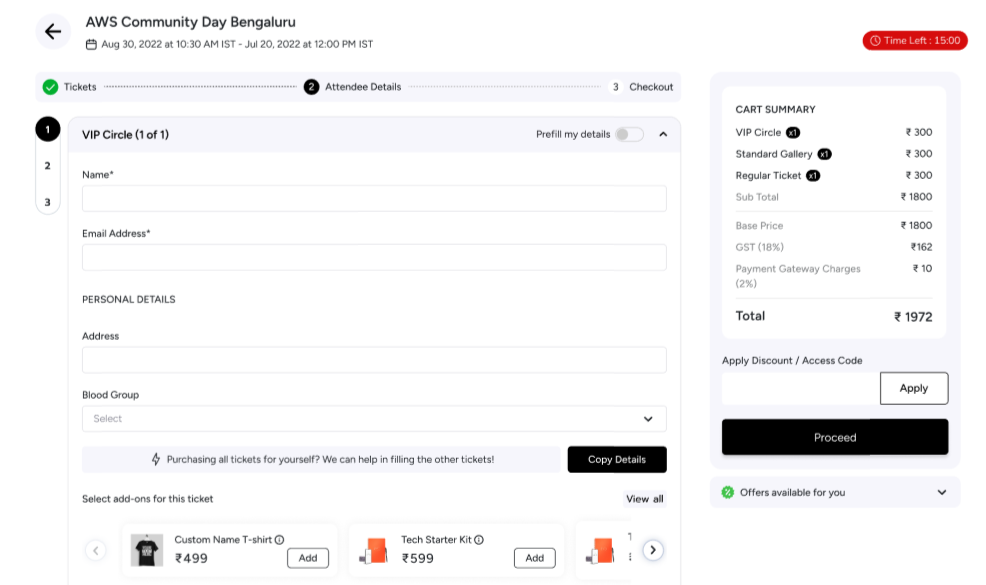
For example, you can use it to introduce a section called Personal Details, explain what attendees need to provide in the next few questions, share important instructions, or display a disclaimer before asking attendees to confirm their registration.
You can also format the content using the rich-text editor, making it easier to distinguish section titles from supporting information.
The idea is simple: give attendees the context they need without adding unnecessary form fields.
Why Use the Heading Field in Registration Forms?
When you're building a registration form, it's easy to focus on the information you want to collect and overlook how attendees will move through it. A long list of questions without clear sections can make the process feel confusing.
The Heading field helps solve this problem in a few practical ways.
- Organize forms with clear sections
Use headings like Personal Details, Professional Information, and Dietary Requirements to make long registration forms easier to navigate.
- Add instructions where needed
Use headings to provide context, explain required details, or guide attendees on how to answer specific questions.
- Display disclaimers and important information
Highlight event guidelines, eligibility criteria, or ticket-specific information without requiring attendees to enter a response.
- Improve the registration experience
Make forms more structured and user-friendly while avoiding unnecessary custom fields just to display information.
How to Add a Heading Field in KonfHub
Adding a Heading field works through the existing custom form builder. You can create one while setting up a new form or edit an existing custom field configuration.
Follow these steps to get started.
Step 1: Open the Forms section
Log in to your KonfHub account, and from your event’s admin dashboard, navigate to Event Info → Forms.
Here, you'll find the form configuration options for your event, including the Selected Forms section.
Step 2: Add a new field
Click Add Form in the Selected Forms section to open the configuration window.
If you're updating an existing custom field, you can click its edit icon instead.
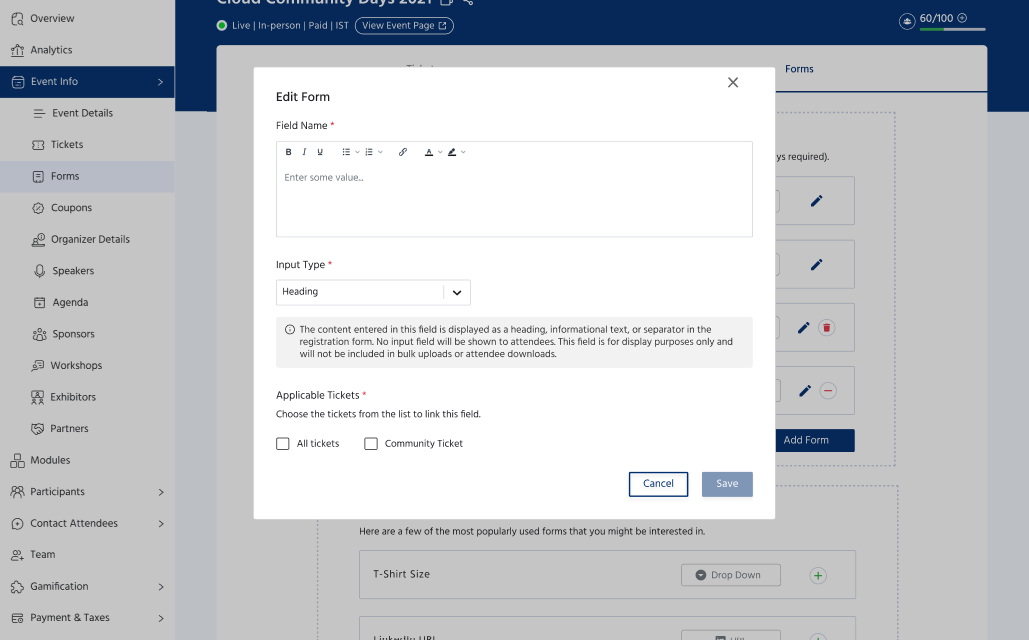
Step 3: Enter the heading content
In the Field Name section, enter the content you want attendees to see.
The rich-text editor lets you format the content using options such as:
Bold, italic, underline, and strikethrough
Bulleted and numbered lists
Hyperlinks
Text colour
Code blocks
You can use these options to create a simple section title or add more detailed instructions, depending on what your form needs.
For example, you could enter PERSONAL DETAILS as a section heading or add a short paragraph explaining the information attendees need to provide.
Step 4: Select Heading as the input type
Under Input Type, select Heading from the dropdown.
Once you select this option, KonfHub displays an informational notice explaining that the content will appear as a heading, informational text, or separator in the registration form.
The notice also clarifies that no input field will be shown to attendees and that the content will not be included in bulk uploads or attendee downloads.
This is an important distinction: the Heading field displays information but does not collect attendee responses.
Step 5: Choose the applicable tickets
Under Applicable Tickets, select the tickets for which the heading should be displayed.
You can choose All tickets to make the content available across your event's ticket types, or select individual tickets.
Step 6: Save the field
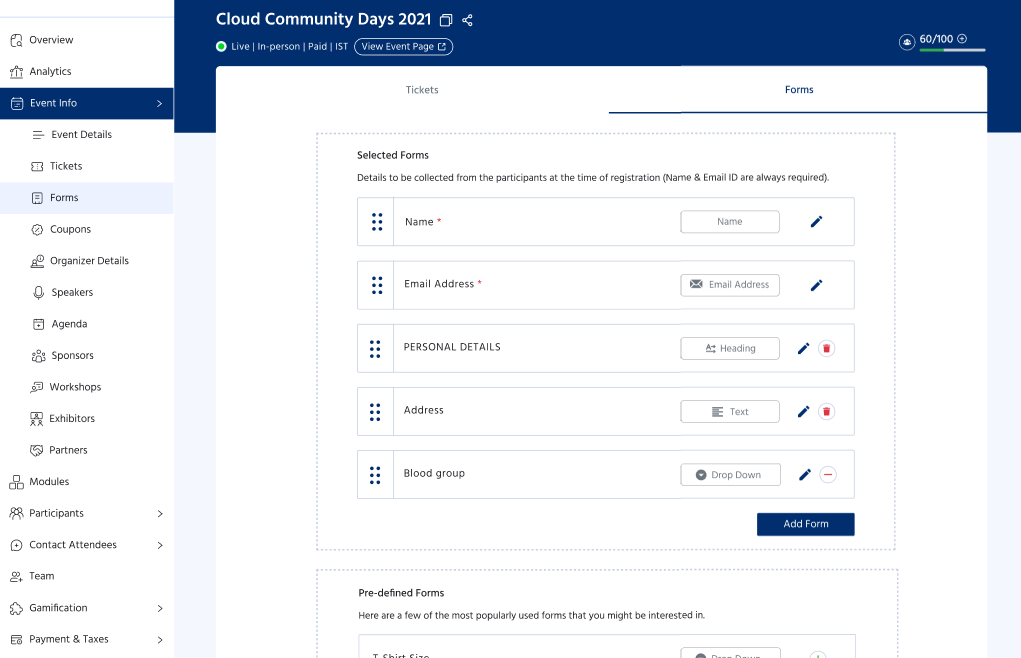
Click Save to add the Heading field to your Selected Forms list.
The field will appear alongside your other configured form fields, with a Heading label and options to edit or delete it.
You can now position it wherever it makes the most sense in your form.
What Happens to Heading Fields in Attendee Data and Bulk Uploads?
Since the Heading field is designed only to display content, it behaves differently from regular input fields.
Heading fields are excluded from attendee data exports and bulk upload sheets. They do not collect attendee responses and are not treated as fields that attendees must complete.
This means you can add as many relevant headings and instructions as your form requires without introducing extra data columns or asking attendees to provide unnecessary information.
Make Your Registration Forms More Structured With KonfHub
Small improvements to a registration form can make a noticeable difference to the attendee experience. Clear section titles, useful instructions, and well-placed disclaimers help attendees understand what is expected of them at every stage.
With the new Heading field in KonfHub, organizers can add this context directly to their custom forms, format it as needed, control its visibility by ticket type, and rearrange it alongside other fields.
Whether you're creating a short event registration form or one with multiple sections and detailed questions, the Heading field gives you another way to make the process clearer and easier to follow.
Explore the custom form builder in your KonfHub dashboard and start organizing your registration forms around the information your attendees need.
Frequently Asked Questions
What is the Heading field in KonfHub?
The Heading field is a non-input field in KonfHub's custom form builder. It allows organizers to display section titles, instructions, disclaimers, and other formatted content in registration forms without collecting attendee responses.
How do I add a Heading field to my registration form?
Go to Event Info → Forms, click Add Form, enter your content, and select Heading as the input type. Choose the applicable tickets and click Save.
Can I format the content inside a Heading field?
Yes. The rich-text editor supports formatting options such as bold, italic, underline, strikethrough, lists, hyperlinks, text colour, and code blocks.
Can a Heading field be displayed for specific ticket types?
Yes. You can select All tickets or choose individual ticket types under Applicable Tickets to control where the heading is displayed.
Are Heading fields included in attendee exports or bulk uploads?
No. Heading fields do not collect attendee information and are excluded from attendee data downloads and bulk upload sheets.
Can I change the position of a Heading field after creating it?
Yes. You can use the drag-and-drop handle in the Selected Forms list to move the Heading field above or below other form fields.
About the author
KonfHub is an AI-powered, GDPR-compliant platform for seamless ticketing, secure attendee management, and smooth event operations. Say goodbye to complexity and hello to seamless, powerful event management!
Comments
Join the discussionNo comments yet. Be the first to comment.