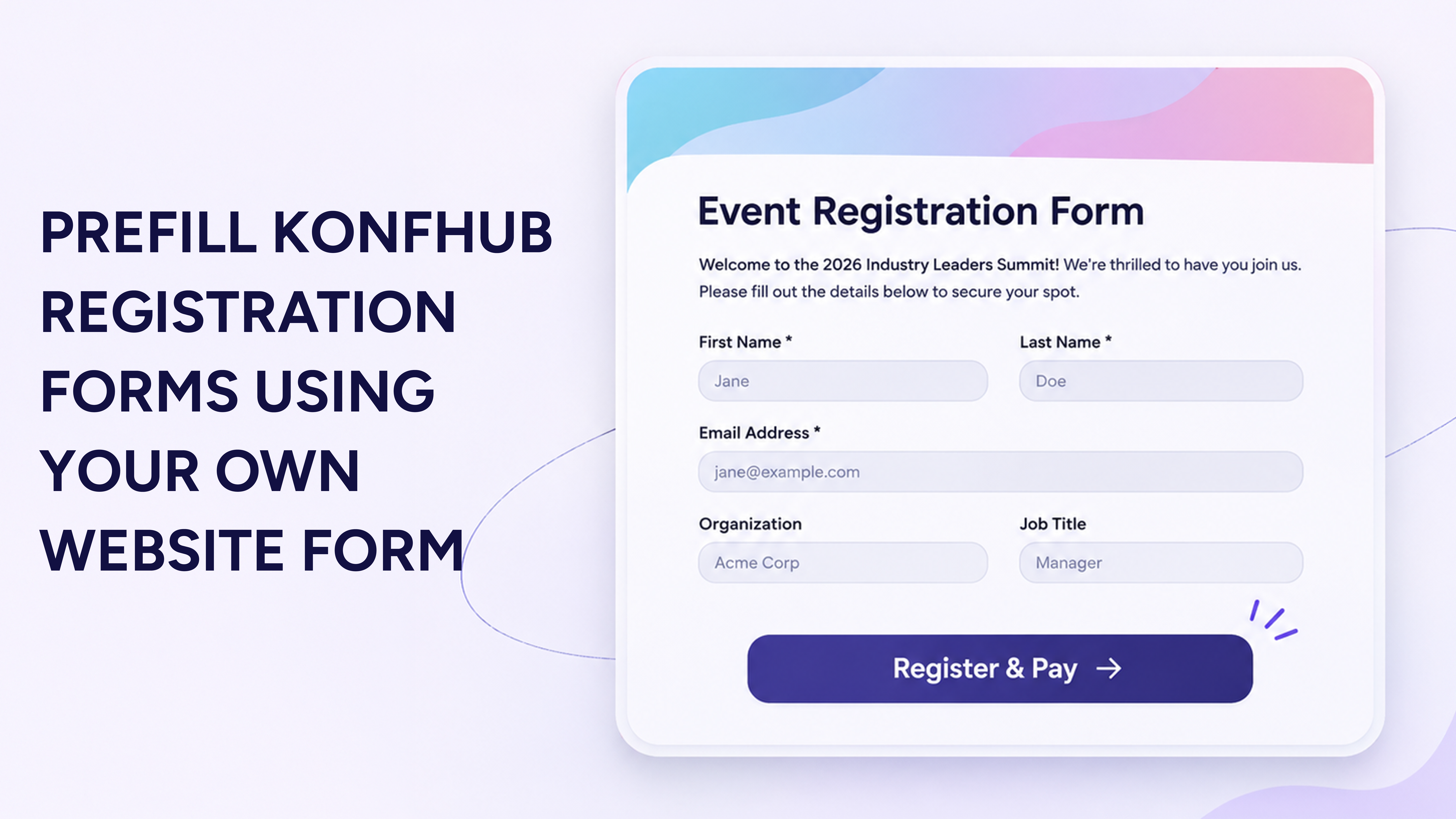
Some event organisers prefer collecting attendee information through their own websites before taking them to the checkout page. They may already have a registration form in place to collect details, validate information, or maintain their own attendee records.
However, when attendees reach the KonfHub checkout page, they have to enter the same information again. This can make the registration process longer than necessary.
To avoid this, KonfHub now supports form prefill through checkout URL parameters. Organisers can collect attendee details through their own website forms and pass that information to the KonfHub checkout page. The corresponding fields will be automatically filled in when the checkout page opens.
Let's look at how this works and how you can set it up.
What Is Form Prefill?
Form prefill allows organisers to fill in KonfHub registration fields using information already collected through their own website forms.
For example, suppose your website form collects an attendee's name, email address, organisation, and WhatsApp number. Instead of asking for these details again on the KonfHub checkout page, you can pass the collected values through the checkout URL.
When the attendee opens the checkout page, these fields will already be filled in. They can review the information and continue with the registration and payment.
This is useful for organisers who want to continue using their existing registration forms while managing ticketing and payments through KonfHub.
How Does Form Prefill Work?
KonfHub checkout can be embedded on your website using an iframe. You can pass the attendee's information to this iframe through URL query parameters.
Here are the steps to set it up.
Step 1: Create a Widget
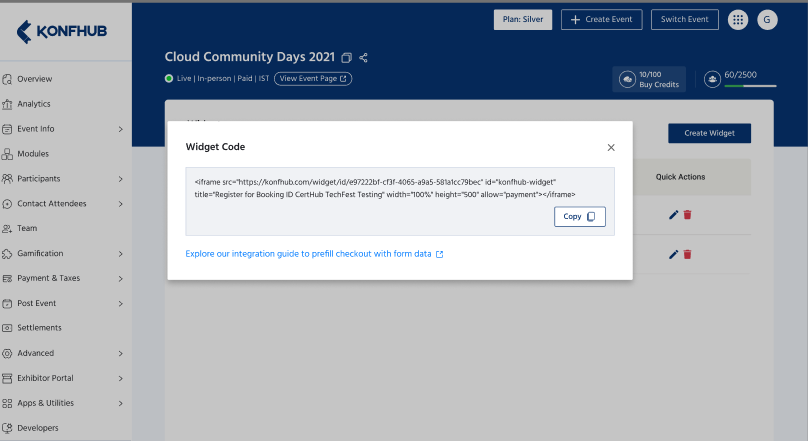
First, create a widget for your event in the KonfHub dashboard by heading to Developers -> Widget section. This widget will allow you to embed the KonfHub checkout on your own website.
Once the widget is created, you can access the form-related information required for the prefill integration.
Step 2: Get Your Event's Ticket and Form Details
Before passing the information to checkout, you need to know which registration fields are available for the selected ticket.
You can get these details using the following KonfHub API:
GET https://api.konfhub.com/event/url/:eventUrl/tickets
Replace :eventUrl with your event's URL slug.
For example:
https://api.konfhub.com/event/url/future-sustainability-forum-2025/tickets
The API response contains the event's ticket details and the registration fields associated with each ticket.
Each ticket has a forms[] array containing details such as:
- form_id: Unique ID of the form field.
- form_name: Name of the field.
- form_type: Type of the field.
- is_mandatory: Whether the field is mandatory.
- form_options: Available options for applicable fields.
- is_default: Whether the field is a predefined field.
- er_column_mapping: Mapping key for predefined fields.
- form_visibility: Field visibility settings.
Find the ticket you want to use by checking its ticket_id. Then, refer to the forms[] array of that ticket to identify the available fields.
Remember that different tickets may have different registration fields. Always use the fields associated with the selected ticket.
Step 3: Map Your Website Form Fields to KonfHub Fields
Once you have the field details, map the information collected through your website form to the corresponding KonfHub fields.
There are two types of field mappings:
1. Predefined fields
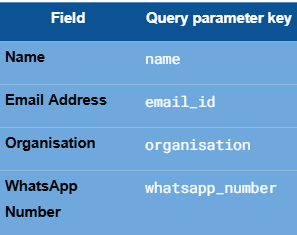
For predefined fields, use the value in er_column_mapping as the query parameter key.
For example:
- Custom fields
For custom fields, use the field's form_id as the query parameter key.
For example, consider a custom field called "Consent for registration" with the Form ID 161258. In this case, use 161258 as the query parameter key.
One thing to note is that you should not identify a field as predefined only because it has an er_column_mapping value. Check the is_default property as well.
For example, the "Consent for registration" field has an er_column_mapping value of custom_forms, but since it is a custom field, you must use its Form ID (161258) for mapping.
Step 4: Add the Values to Your Checkout URL
After mapping the fields, you can add the attendee's information to the KonfHub checkout URL as query parameters.
The basic checkout URL looks like this:
https://konfhub.com/checkout/YOUR_EVENT_SLUG?ticketId=YOUR_TICKET_ID
You can append the attendee's details using the mapped query parameter keys.
For example, you can pass the following values:
- name = Attendee's name
- email_id = Attendee's email address
- organisation = Attendee's organisation
- whatsapp_number = Attendee's WhatsApp number
Here is a JavaScript example:
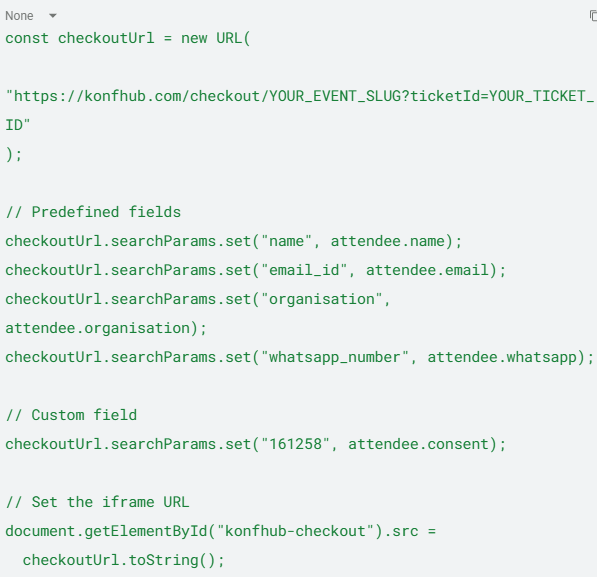
Replace the sample event details and attendee values with the actual values collected through your website form.
Using JavaScript's URL and URLSearchParams methods also ensures that special characters, spaces, and email addresses are encoded correctly.
If your existing checkout URL already contains required parameters, make sure you retain them when adding the new values.
Step 5: Load the Checkout Iframe
Once you have added the required values, set the generated checkout URL as the src of your KonfHub checkout iframe.
When the iframe loads, the matching registration fields will be automatically populated with the information collected through your website form.
Attendees can check their details, make changes where permitted, and proceed with the payment.
Which Checkout Flow Is Supported?
The form prefill integration currently supports the following checkout journey:
Fill Info / Form → Pay
In this flow, attendees first fill in the organiser's website form. The organiser then passes the collected information to KonfHub, which opens checkout directly at the information/form step with the supported fields prefilled.
The following flow is currently not supported:
Select Tickets → Fill Info / Form → Pay
Therefore, use this integration only when your checkout journey starts directly at the form step and not at ticket selection.
Important Things to Remember
Before implementing the integration, keep these points in mind:
- Check the selected ticket: Retrieve the form fields for the specific ticket you are linking to. Different tickets may have different fields.
- Use the correct mapping key: Use er_column_mapping for predefined fields and form_id for custom fields.
- Check field requirements: Refer to is_mandatory, form_options, and form_visibility wherever applicable.
- Validate attendee information: Continue validating the information on your website. Values passed through the URL should not be treated as verified information.
- Avoid sensitive information: Do not pass passwords, financial details, or identity document numbers through URL parameters.
- Update the iframe at the right time: Set the iframe URL after the attendee submits the website form. Updating it repeatedly can reload checkout and reset an ongoing registration.
- Test the integration: Check whether fields are prefilled correctly on desktop and mobile. Also test special characters, blank values, custom fields, and the complete payment process.
Avoid Repeated Data Entry with KonfHub Form Prefill
If you already collect attendee information through your website, you don't have to ask for the same details again at checkout.
With KonfHub's form prefill functionality, you can pass the information collected through your own registration form to the corresponding KonfHub fields. This lets you continue using your existing website form while managing registrations and payments through KonfHub.
Your attendees enter their details once, and those details are carried forward to checkout.
Frequently Asked Questions
- What is form prefill in KonfHub?
Form prefill allows organisers to automatically fill KonfHub registration fields using attendee information collected through their own website forms. - Can I use my own website registration form with KonfHub checkout?
Yes. You can collect attendee details through your website and pass them to KonfHub checkout using URL query parameters. - How do I map custom fields in the KonfHub checkout form?
For custom fields, use the field's form_id as the query parameter key. For predefined fields, use the er_column_mapping value. - Does form prefill work with all checkout journeys?
No. Currently, it supports only the direct-to-form checkout journey (Fill Info / Form → Pay). The ticket-selection-first journey is not supported. - Can attendees edit the prefilled information before completing registration?
Yes. Attendees can review the prefilled information and make changes where permitted before proceeding with the payment.
About the author
KonfHub is an AI-powered, GDPR-compliant platform for seamless ticketing, secure attendee management, and smooth event operations. Say goodbye to complexity and hello to seamless, powerful event management!
Comments
Join the discussionNo comments yet. Be the first to comment.