Managing an event involves more than just setting up tickets and opening registrations. From customizing your event page to managing payments, configuring integrations, and accessing reports, there are several things to take care of in the KonfHub admin dashboard.
As you work on your event, you might find yourself moving between different sections of the dashboard quite often. While the left-side menu helps you navigate between these sections, finding a specific option can take a little time, especially when it sits inside a submenu.
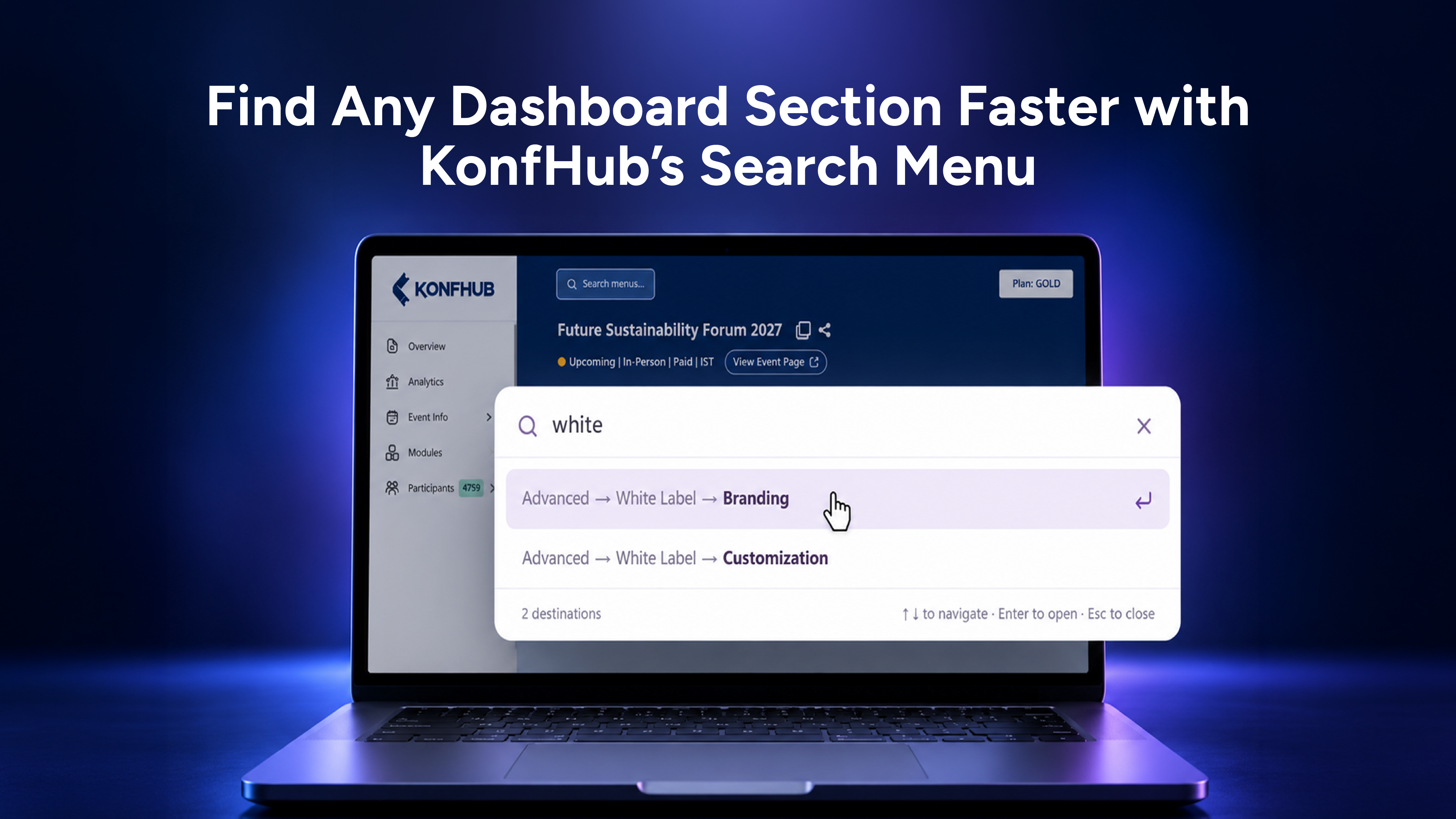
To make navigation easier, KonfHub now offers a Search Menu option in the admin dashboard. Instead of browsing through the menu to find a particular setting, you can search for it directly and jump to the relevant page.
What Is the Search Menu Option?
The Search Menu option lets you find sections and modules within the KonfHub admin dashboard using a simple search.
Suppose you want to access the White Label settings for your event. You would typically navigate through Advanced → White Label using the menu on the left. With the new search option, you can simply type White Label into the search bar, find the relevant navigation option, and click on it to open the page.
There's no need to remember where a setting is located or go through multiple menu options to find it.
Whether you're looking for a specific configuration, a dashboard module, or an event management setting, you can use the search menu to get there directly.
How to Use the Search Menu in KonfHub
Finding a section in the admin dashboard is simple. Here's how you can use the feature.
Step 1: Open the KonfHub admin dashboard.
Log in to your KonfHub account and open the event admin dashboard where you want to make changes.
Step 2: Access the Search Menu option.
Locate the search option in the admin dashboard.
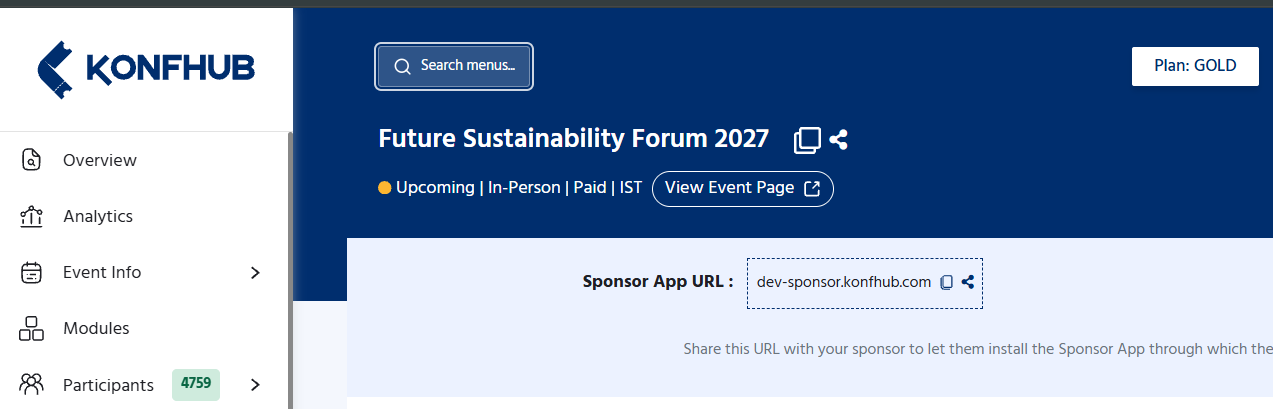
Step 3: Enter the name of the section you need.
Type the name of the setting, section, or module you're looking for. For example, if you want to access White Label settings, enter White Label in the search bar.
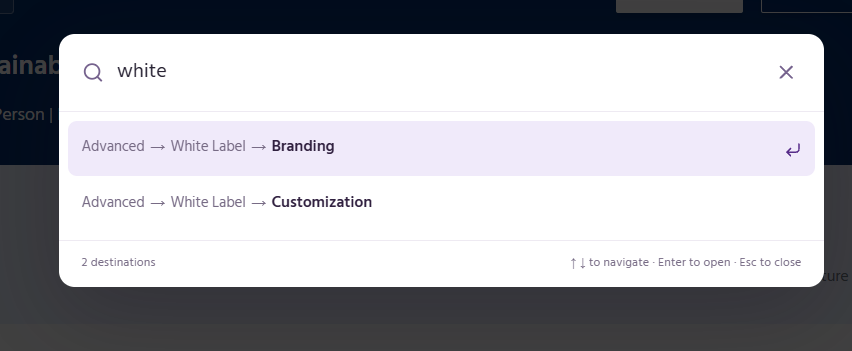
Step 4: Select the relevant result.
The dashboard will display the matching navigation option. Click on the result to open the corresponding page directly.
That's it! You can now access the section you need without manually navigating through the menu on the left.
When Can You Use the Search Menu?
The Search Menu is useful whenever you know what you want to access but don't want to spend time finding it in the dashboard.
Here are a few situations where it can come in handy:
- Accessing White Label settings: Search for White Label instead of navigating through Advanced → White Label.
- Finding a specific module: Search for the name of the module you want to access rather than scrolling through the dashboard menu.
- Moving between different settings: If you're working on multiple parts of your event setup, use the search option to switch between sections quickly.
- Finding less frequently used options: If you don't regularly work with a particular setting, searching for its name can be easier than remembering which menu contains it.
The feature is particularly helpful when you're managing several aspects of an event and need to move between different dashboard sections throughout the day.
What Doesn’t the Search Feature Support (Yet)?
The Search menu helps you quickly find and navigate to the menu item you’re looking for. However, it doesn’t support full-text or data-level search yet. You can’t use it to search for specific participant details, tickets, coupons, or other event-related information.
Currently, the search functionality is limited to menu navigation. We’re working on making it more powerful and comprehensive, so you can search for the information you need directly from the dashboard. Stay tuned!
Spend Less Time Navigating, More Time Managing Your Event
When you're setting up an event, even small tasks can add up. Having to navigate through menus every time you need a particular setting may not seem like a big deal, but it can interrupt your workflow when you're handling multiple things at once.
The Search Menu makes this process more straightforward. You can look up the section you need, click on the result, and get straight to work.
You don't have to remember the exact menu path for every setting, and you can spend less time browsing the dashboard to find what you're looking for.
It's a small addition to the KonfHub admin dashboard, but one that makes everyday navigation a little easier.
Next time you're looking for a section in your dashboard, try searching for it directly. You might not need to open the left-side menu at all.
Frequently Asked Questions
- What is the Search Menu option in the KonfHub admin dashboard?
The Search Menu is a navigation feature that helps you find specific sections, settings, and modules in the KonfHub admin dashboard without manually browsing the left-side menu. - How do I find a specific setting using the Search Menu?
Open the Search Menu and enter the name of the setting you want to access. Select the relevant result to navigate directly to that page. - Can I access submenu options using the Search Menu?
Yes. You can search for options nested within other menu sections. For example, instead of navigating through Advanced → White Label, you can search for White Label and open the page directly. - Do I need to remember the exact menu path to access a dashboard section?
No. You can search for the name of the section or setting you need and select the matching navigation result without remembering its location in the dashboard. - How does the Search Menu make event management easier?
It reduces the time spent navigating through dashboard menus, making it easier to switch between settings and modules while managing different aspects of your event. - Can I use the Search Menu to find different modules in the dashboard?
Yes. You can search for a section or module by its name and use the matching result to navigate directly to it.
About the author
KonfHub is an AI-powered, GDPR-compliant platform for seamless ticketing, secure attendee management, and smooth event operations. Say goodbye to complexity and hello to seamless, powerful event management!
Comments
Join the discussionNo comments yet. Be the first to comment.