Configure GST at the Ticket Level on KonfHub: Flexible Tax Management for Your Events
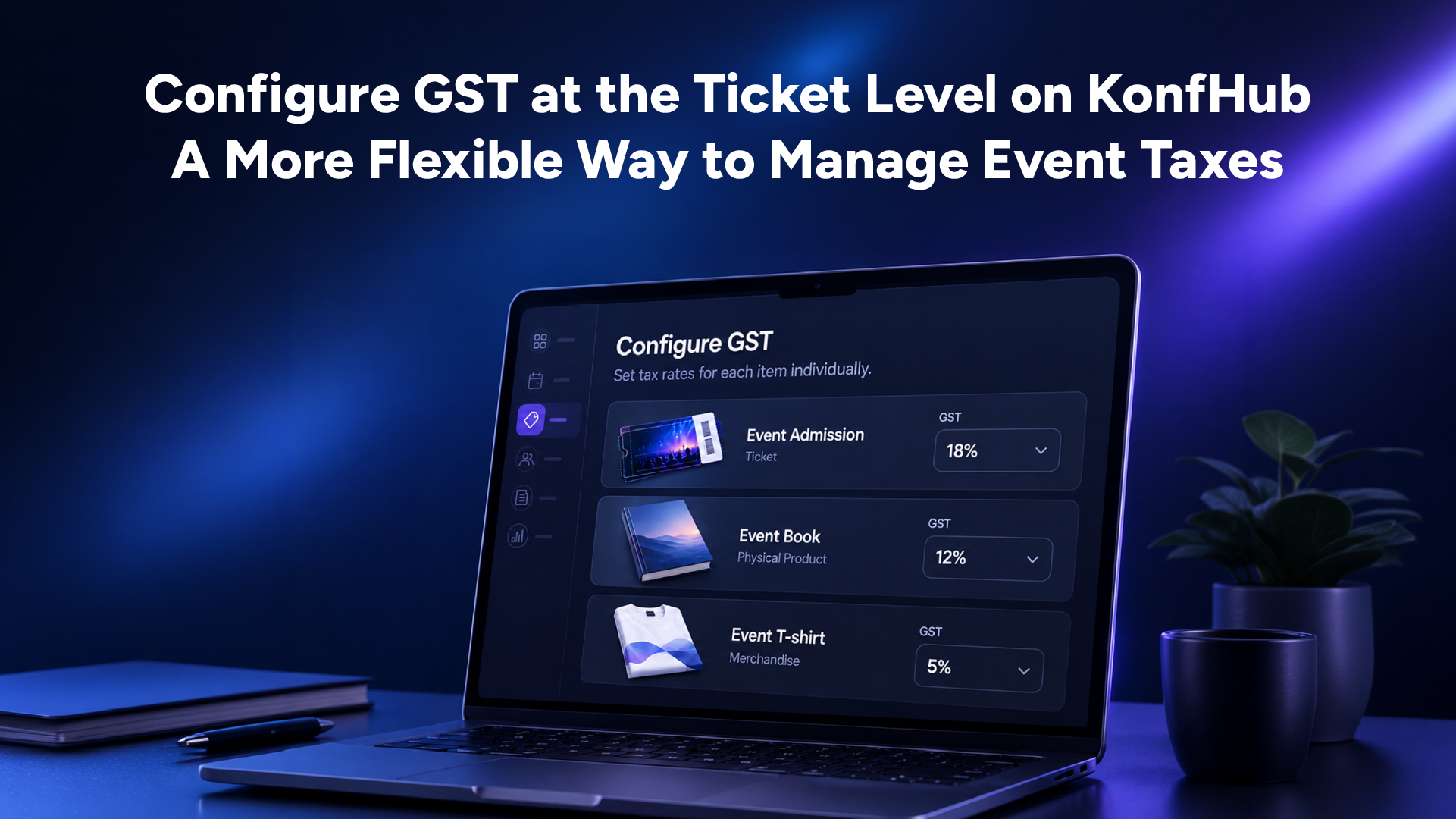
When setting up tickets/add-ons for an event in India, GST is one of the details organizers need to get right. However, not every ticket category necessarily requires the same tax rate or classification. Depending on the event and the type of ticket being sold, organizers may need different GST percentages or HSN/SAC codes.
Previously, enabling GST on KonfHub meant applying it across all tickets/add-ons in an event. This worked for events where every ticket/add-on followed the same tax structure, but it offered less flexibility when different ticket/add-on required different configurations.
With KonfHub’s new ticket-level GST configuration, organizers can now set up GST separately for each ticket/add-on. They can specify the applicable GST percentage, enter the relevant HSN/SAC code, and add SEZ-related details where applicable.
Let’s look at how this update works and what organizers need to know when configuring GST for their events.
What Is Ticket-Level GST Configuration?
Ticket-level GST configuration allows organizers to define tax details for individual ticket categories instead of applying one common GST setting to every ticket in the event.
For example, an event might offer standard admission tickets, t-shirts, and even accommodation. Since these categories require different tax configurations, organizers can now configure the GST percentage and HSN/SAC code for each ticket separately.
This gives organizers more control over how taxes are configured during event setup, particularly when an event has multiple ticket categories with different requirements.
What Has Changed?
The main change is how GST can be configured for an event. Earlier, organizers could enable GST for the event, and the setting would apply to all tickets/add-ons. Now, GST can be configured at the individual ticket level, allowing organizers to enter the relevant details for each ticket category.
With this update, organizers can:
Set GST separately for each ticket: Configure the required GST percentage based on the applicable tax treatment for that ticket.
Add an HSN/SAC code: Enter the relevant code for each ticket category.
Configure SEZ-related details: Select the SEZ option for eligible tickets and add relevant notes in the invoice where required.
Manage different ticket taxation more flexibly: Maintain different tax configurations within the same event, where applicable.
The goal is to make ticket setup more adaptable to the requirements of different events without forcing every ticket to follow the same tax configuration.
How to Configure GST for Individual Tickets/Add-Ons on KonfHub
Organizers can configure GST while setting up their event tickets. The process involves reviewing the requirements for each ticket and entering the appropriate tax details.
Step 1: Open Your GST Configuration Settings
Log in to your KonfHub account and open the event for which you want to configure GST.
Navigate to Payment & Taxes >> Tax & Charges menu item.
There you have an option to pre-fill the tax rate for new tickets.
Step 2: Enter the GST Percentage
Configure the GST percentage applicable to tickets listed in the table format.
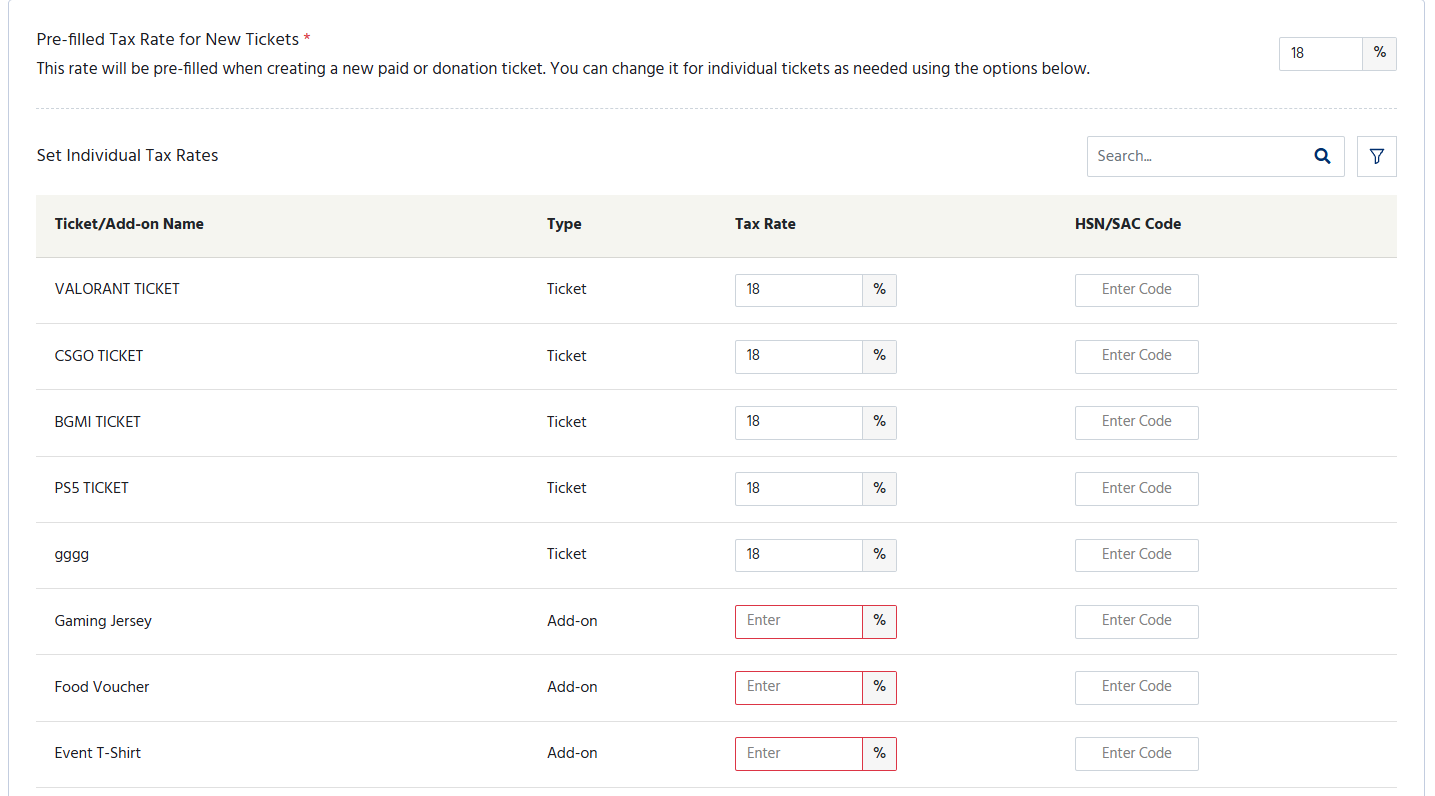
If your event has multiple ticket types, review each one separately. You can now set different GST percentages for different tickets instead of relying on a single event-wide setting.
Make sure the percentage you enter reflects the applicable tax treatment for the ticket.
Step 3: Add the HSN/SAC Code
Enter the relevant HSN/SAC code for the ticket/add-on.
HSN and SAC codes are used to classify goods and services for taxation purposes. The appropriate code depends on the nature of the supply, so organizers should verify the correct classification before saving their configuration.
If your event offers several ticket categories, check that the code entered for each ticket is appropriate for that category.

Step 4: Review the SEZ Option, If Applicable
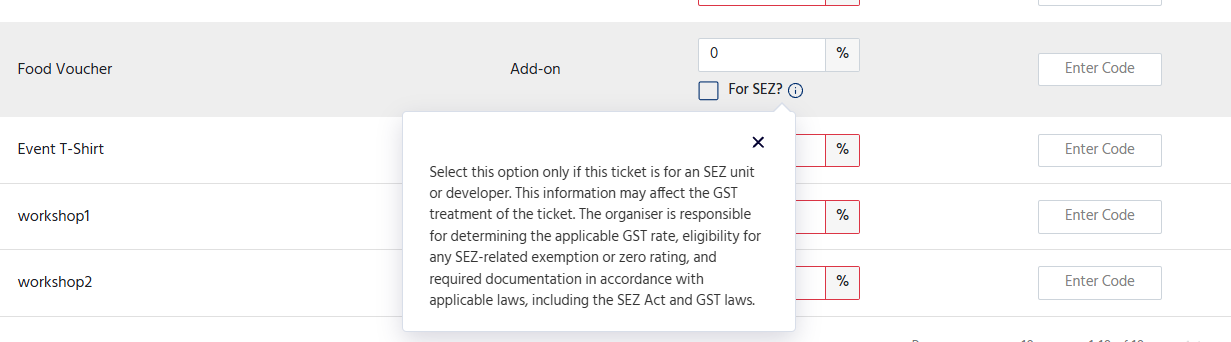
KonfHub also provides an option for tickets/add-ons associated with a Special Economic Zone (SEZ).
Select this option ONLY if the ticket is meant for purchase by any SEZ unit or developer. The platform displays a default note (“Supply meant for SEZ under LUT without payment of tax.”) explaining that this information may affect the GST treatment of the ticket and this text is configurable.
If you intend to keep GST at 0% because of an SEZ-related exemption or zero-rating provision, take particular care when reviewing this setting. Selecting the SEZ option does not, by itself, establish eligibility for a tax exemption or zero rating.
The organizer is responsible for determining the applicable GST rate, confirming eligibility for any SEZ-related exemption or zero rating, and maintaining the required documentation in accordance with applicable GST rules.
Step 5: Review Each Ticket Before Publishing
Before making your event live, review the GST percentage, HSN/SAC code, and SEZ-related details for every ticket that requires a separate configuration.
This final check can help prevent incorrect tax information from being used when registrations and ticket sales begin.
Setting up GST on Ticket Level
You can also configure the GST and add the code for each ticket separately.
Go to Event info >> Tickets.
Edit the ticket for which you want to set up the GST.
Add the GST % and the HSN Code for the ticket.
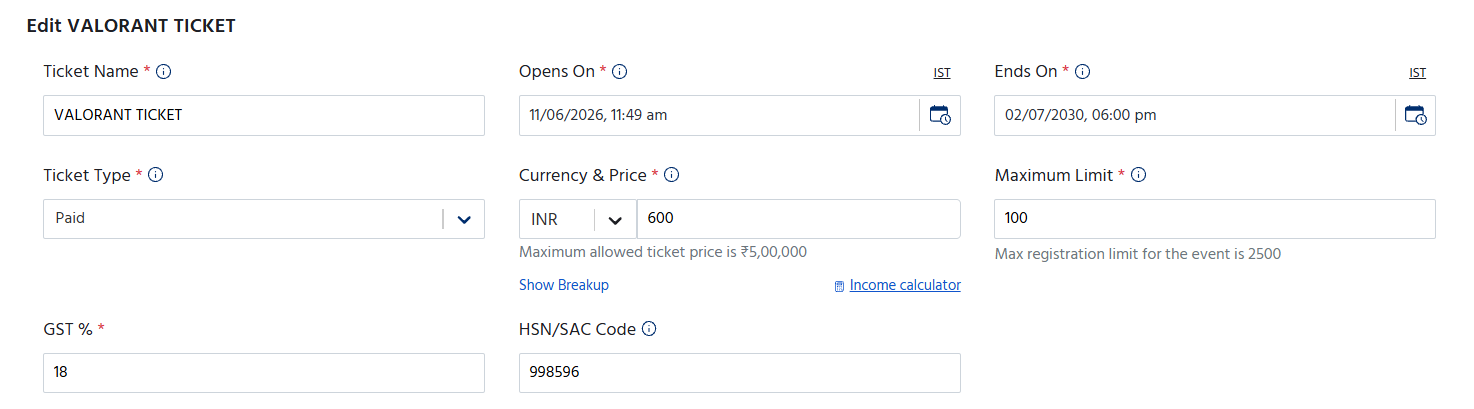
This will be enabled for the ticket only when you have successfully added your GST details for the event in the Taxes & Charges section.
Understanding the SEZ Option and GST at 0%
The SEZ option is particularly important for organizers whose events involve eligible SEZ units or developers.
SEZ-related GST treatment can depend on the nature of the supply, the parties involved, the applicable legal provisions, and the documentation available. Therefore, organizers should not assume that every ticket purchased by an SEZ-related entity automatically qualifies for a zero rate or exemption.
When configuring an SEZ-related ticket on KonfHub, organizers should:
Select the SEZ option only when the ticket is intended for an SEZ unit or developer.
Edit the relevant invoice notes if needed.
Verify whether the transaction qualifies for the intended GST treatment.
Get the documentation required from the purchaser to support the applicable tax treatment.
Consult a qualified tax professional if they are unsure about the correct GST rate or eligibility requirements.
The configuration gives organizers a way to record the relevant ticket-level details, but the responsibility for determining the correct tax treatment remains with the organizer.
Why Is Ticket-Level GST Useful for Event Organizers?
For events with just one ticket type and a uniform tax structure, a common GST setting may be sufficient. However, events with multiple ticket categories can have more complicated requirements.
This update makes it easier to manage those differences within a single event.
More flexibility during ticket setup
Organizers can configure the GST percentage for each ticket instead of applying the same setting across all ticket categories.
Better control over tax classification
Adding an HSN/SAC code at the ticket level helps organizers maintain the relevant classification details alongside each ticket's tax configuration.
Support for events with multiple ticket categories
When different tickets/add-ons require different GST configurations, organizers can manage those requirements separately rather than treating the entire event as one uniform category.
A dedicated option for SEZ-related tickets/add-ons
Organizers dealing with eligible SEZ units or developers can select the relevant option and add notes where needed, while considering the applicable tax rules and documentation requirements.
A more practical ticket management process
Keeping tax details associated with individual tickets makes it easier to review the configuration for each category before publishing an event.
Conclusion
GST configuration is an important part of setting up an event, especially when different tickets/add-ons have different tax requirements. Applying one common setting across all tickets may not always suit the way an event is structured.
With KonfHub's ticket-level GST configuration, organizers can now set the required GST percentage and HSN/SAC code for each ticket individually. The additional SEZ option and invoice notes also provide a way to record relevant details for the relevant tickets and add-ons.
Before publishing an event, organizers should review each ticket's tax settings and confirm that the selected rates, classification codes, and any SEZ-related treatment comply with the applicable GST rules.
The update gives organizers greater flexibility in configuring their tickets/add-ons while allowing them to make tax-related decisions based on the specific requirements of their event.
FAQs
What is ticket-level GST configuration on KonfHub?
Ticket-level GST configuration allows organizers to set the applicable GST percentage and HSN/SAC code separately for each ticket/add-on, instead of applying the same GST settings to all tickets in an event.
Can I apply different GST percentages to different tickets on KonfHub?
Yes. Organizers can configure the required GST percentage for each ticket individually, depending on the applicable tax treatment for that ticket category.
What is the purpose of the HSN/SAC code in ticket configuration?
HSN/SAC codes help classify goods and services for taxation purposes. Organizers can enter the relevant code for each ticket based on the nature of the supply. The provided HSN/SAC code is used in the generated invoice when the corresponding ticket/add-on is purchased.
When should I select the SEZ option for a ticket?
Select the SEZ option only if the ticket is meant for purchase by an SEZ unit or developer. Organizers are responsible for verifying eligibility for any SEZ-related GST exemption or zero rating and maintaining the required documentation.
Can I set GST to 0% for an SEZ-related ticket?
Organizers may configure a 0% GST rate where applicable, but they must first confirm that the transaction qualifies for the relevant exemption or zero-rating provisions under GST law. Selecting the SEZ option alone does not establish eligibility.